Application Plugin
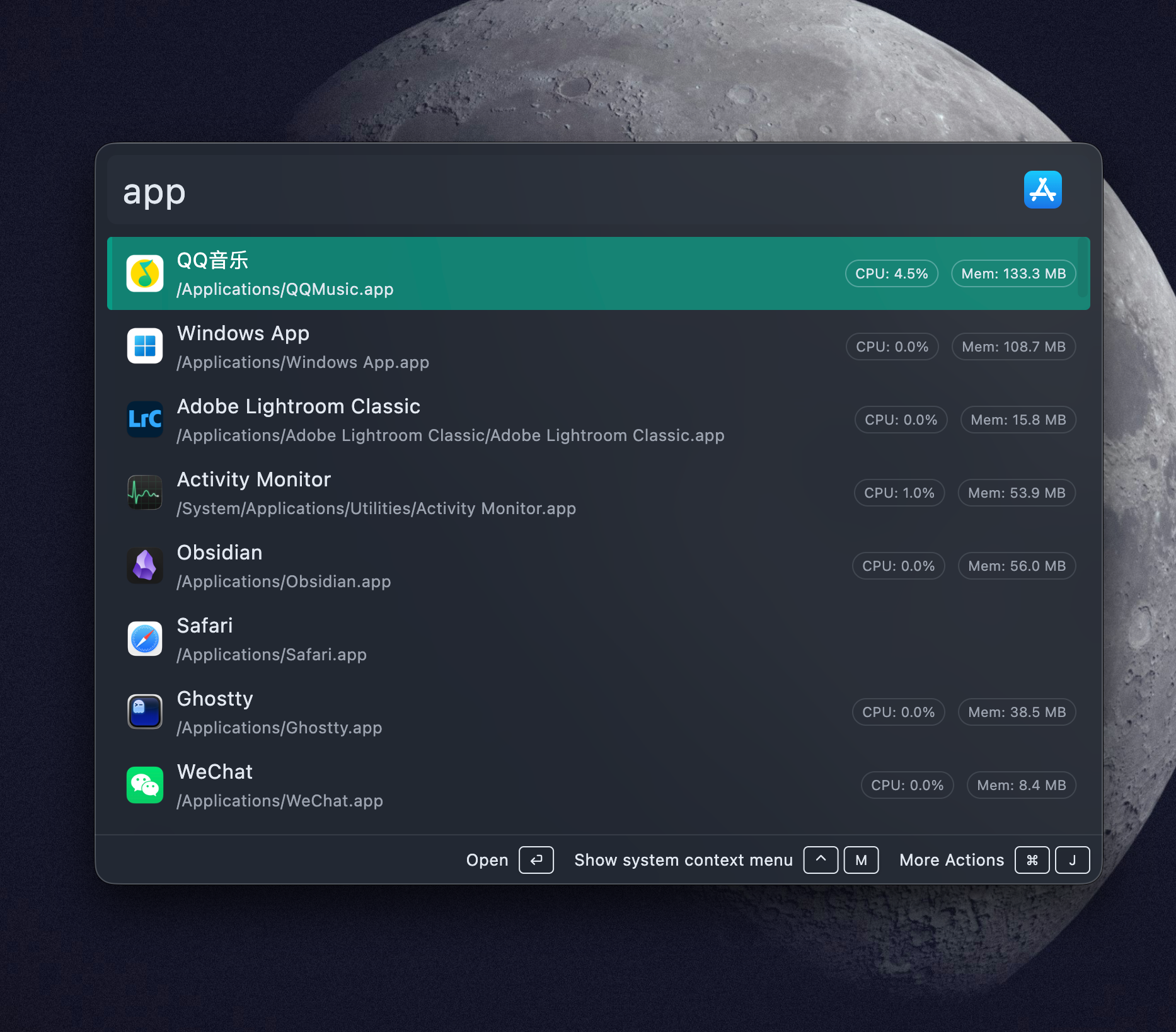
Application search is a global plugin. Type an app name directly; no keyword is required.
Quick Start
chrome
visual studio code
settings
Press Enter to open the selected app. If Wox can detect that the app is already running, the result can activate the existing window instead of starting another instance.
Actions
Open the Action Panel on an app result for secondary actions:
| Action | Use |
|---|---|
| Open | Launch or activate the app |
| Open containing folder | Reveal the app file in the system file manager |
| Copy path | Copy the executable or bundle path |
| Show context menu | Open the system context menu when supported |
| Terminate app | Stop a running app when Wox can identify the process |
App Sources
Wox indexes common application locations for each platform:
| Platform | Sources |
|---|---|
| Windows | Start Menu entries, Program Files, WindowsApps, UWP apps, Windows settings pages |
| macOS | /Applications, .app bundles, system settings panels |
| Linux | .desktop files and configured app directories |
Settings
Open Settings -> Plugins -> Application to add custom app directories or run app reindexing. Use this when a portable app or local tool does not live in a standard application folder.
Result Ordering
The plugin uses matching score and MRU data. Apps you launch often move up over time, so the first result should become more stable after normal use.
Troubleshooting
A new app is missing
- Wait a few seconds for indexing.
- Run the plugin's reindex command or restart Wox.
- Add the app's parent directory in plugin settings if it is a portable app.
The wrong app appears first
Launch the correct result a few times. MRU scoring will lift frequently used apps above similar matches.
CPU or memory details do not appear
Runtime details are shown only when Wox can map the result to a running desktop process. Store apps, settings panels, or unsupported desktop environments may not expose that data.