AI Settings
AI features are optional. Configure a provider only if you want to use AI Chat, AI Commands, AI-assisted emoji search, or AI theme generation.
Add a Provider
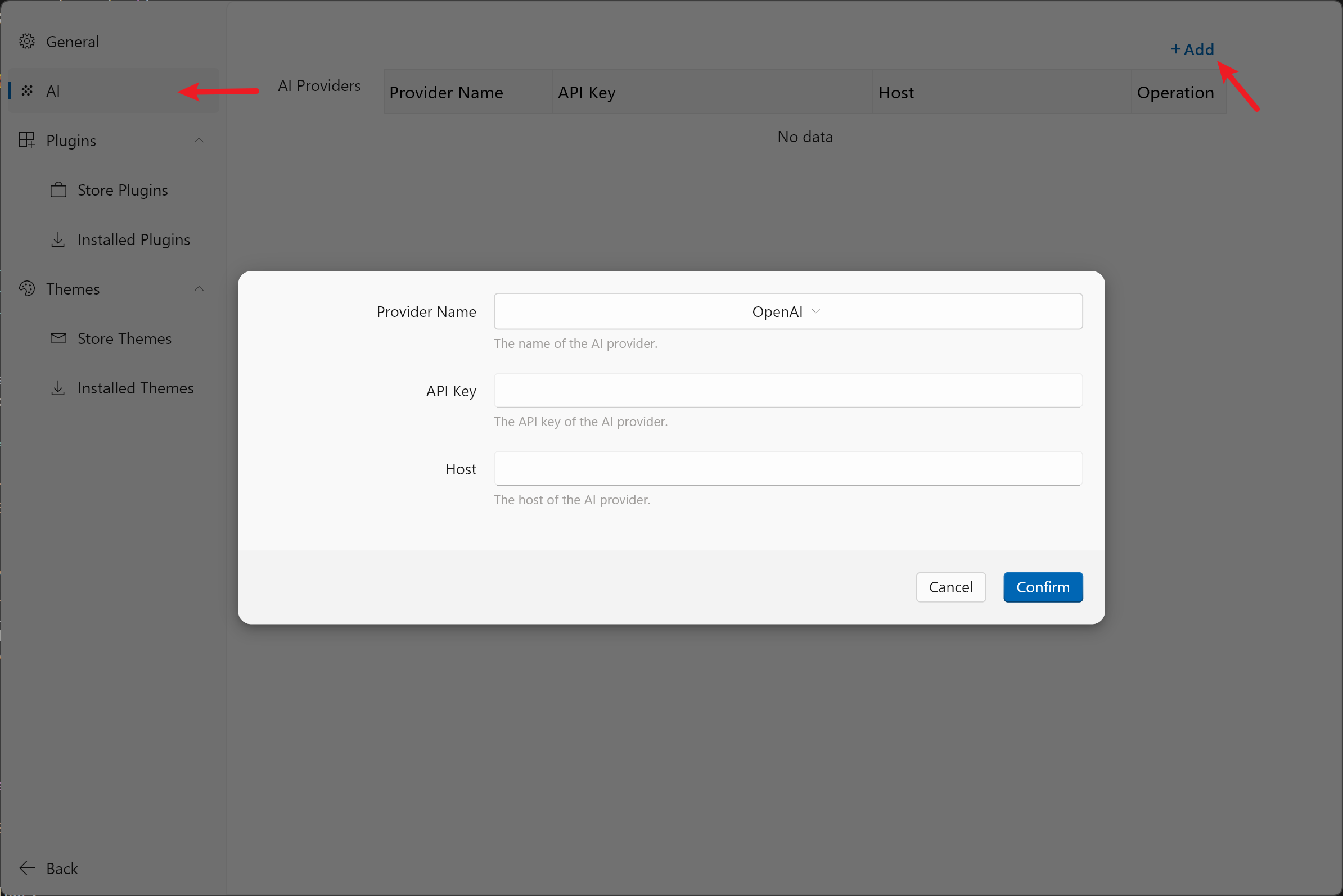
- Open Settings.
- Go to AI.
- Click Add.
- Enter the provider name, API key, model information, and custom host if your provider needs one.
- Save the provider and select it in the feature that should use it.
What the Settings Mean
| Field | Use |
|---|---|
| Provider name | A label you recognize in Wox settings. |
| API key | The credential Wox sends to the provider. |
| Host | Optional API endpoint for compatible services, proxies, or local providers. |
| Model | The model used by chat, commands, or generation features. |
Security Notes
- Treat API keys like passwords.
- Paid providers may bill each request, including AI Commands and theme generation.
- Custom hosts should be trusted; Wox sends your prompt content to that endpoint.
- Avoid sending sensitive clipboard text, selected text, or private files to online models unless you understand the provider policy.
Related Features
Troubleshooting
If an AI feature does not return anything, check these first:
- The provider is enabled and selected by the feature.
- The API key is valid.
- The model name is accepted by the provider.
- The custom host URL is reachable.
- Network access is available.