Did You Know: Wox Can Browse Websites with Query Hotkeys
Wox is usually treated as a launcher: open an app, find a file, run a command, move on. But it can also work as a small web panel when you combine two features: Query Hotkeys and the built-in WebView plugin.
The WebView plugin lets Wox preview configured websites inside the launcher. On first load, it includes two useful examples:
| Keyword | Site |
|---|---|
x | https://x.com |
ig | https://www.instagram.com |
That means webview x opens X in Wox, and webview ig opens Instagram in Wox.
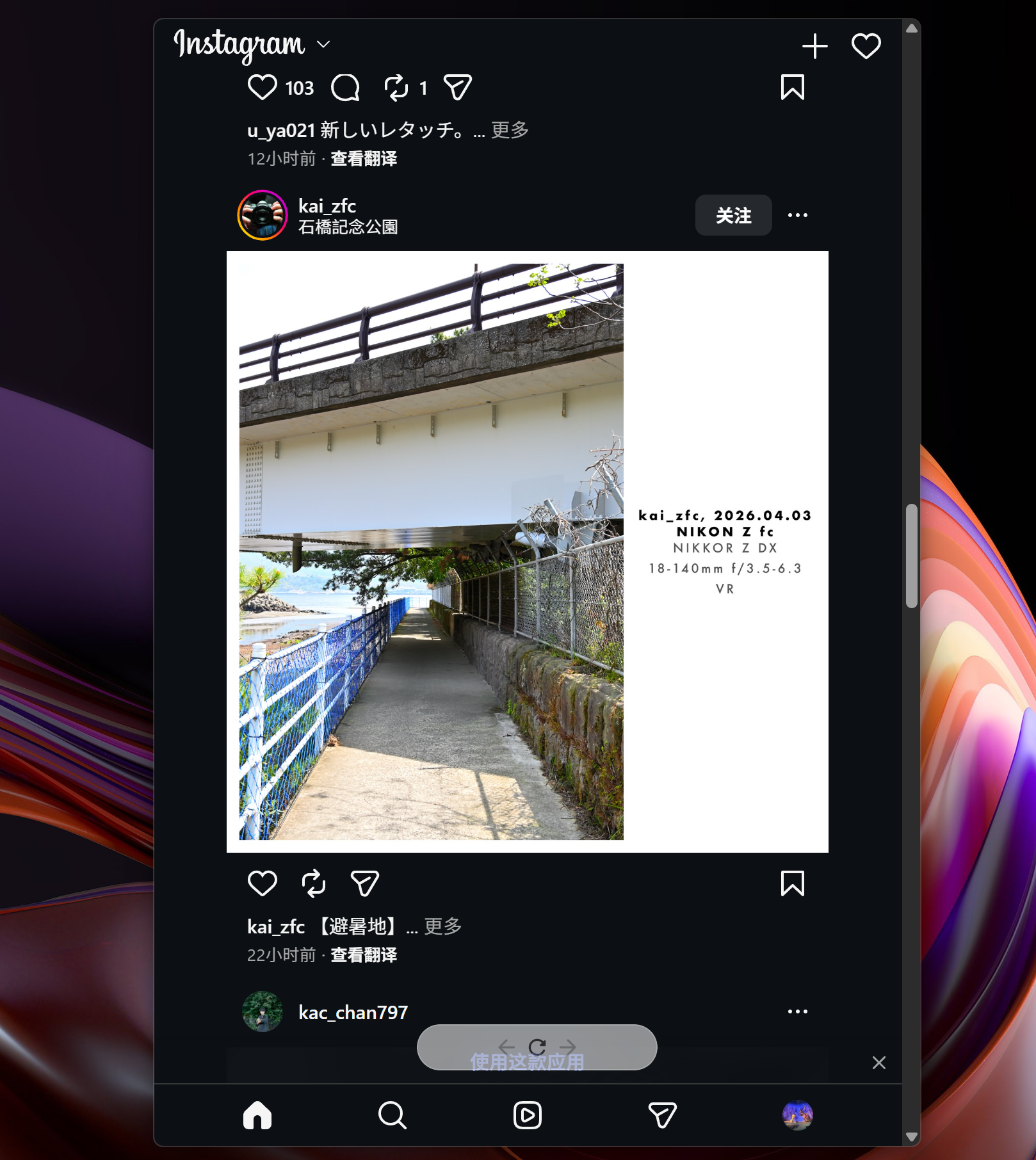
The part that makes this feel fast is Query Hotkeys. Instead of opening Wox and typing webview x every time, create a Query Hotkey, choose the Preview Query preset, and bind it directly to that query:
| Query Hotkey field | Example value |
|---|---|
| Preset | Preview Query |
| Hotkey | Any available shortcut, such as ctrl+shift+x |
| Query | webview x |
| Optional tweaks | Change position, width, or result count if you want a different panel shape |
The Preview Query preset already hides the query box and toolbar and starts with preview-friendly defaults, so in many cases you only need to fill in the hotkey and query. A quick hotkey opens the site as a compact, launcher-sized web panel instead of sending you to a full browser window.
Use the same pattern for Instagram: create another Query Hotkey with the Preview Query preset, then set the query to webview ig.
You can also edit the WebView plugin settings to add your own site keyword and URL. After that, bind another Query Hotkey to webview <keyword>.

Query Hotkeys are best when you want a keyboard shortcut. Tray Queries are useful when you want a persistent menu bar or system tray entry for the same quick panel.
In Settings -> General -> Tray Queries, add a tray query that runs the same WebView query:
| Tray Query field | Example value |
|---|---|
| Icon | Any icon that reminds you of the site |
| Query | webview x |
| Hide Query Box | Enabled |
| Hide Toolbar | Enabled |
| Width | A compact width, such as 420 |
| Max Result Count | 5 is enough |
After that, clicking the tray or menu bar icon opens Wox near the system tray and runs webview x directly. It is the same WebView preview, but the entry point is mouse-friendly instead of keyboard-first.
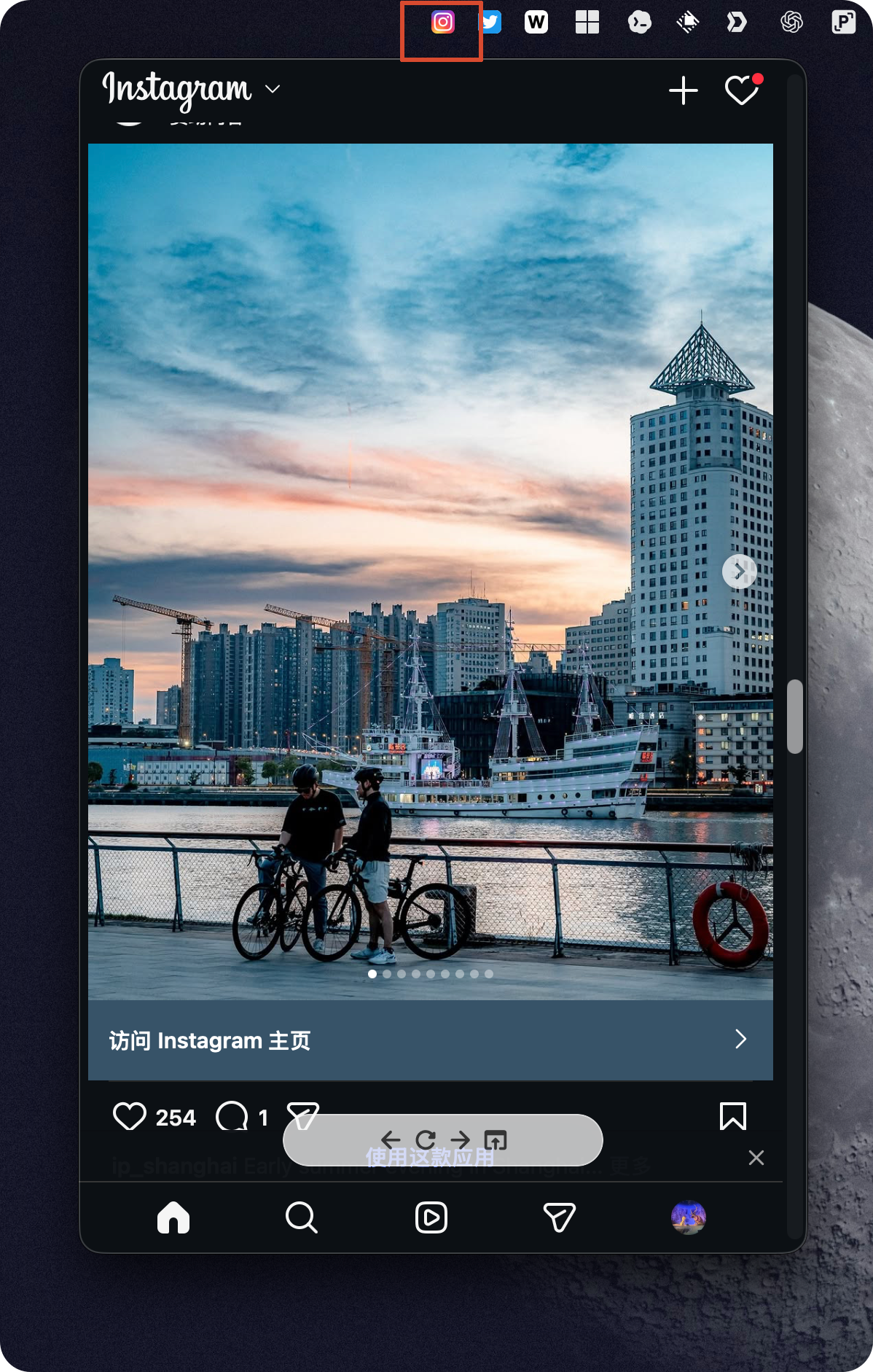
This does not replace a browser. It is better for quick checks: timelines, small dashboards, docs, status pages, or any site you want to glance at without changing your current workspace. When you do need the normal browser, use the WebView result action Open in Browser.
Platform note: the built-in WebView system plugin is currently available on macOS and Windows. Linux does not have a WebView preview implementation in Wox today.